
What Are 6 Must-Try Alternative Tools for Boosting Productivity on Windows 11?
Published: 2025-05-25 20:00:00 | Category: Uncategorized
Enhancing Your Windows 11 Experience: Mastering Productivity Tools
In the ever-evolving landscape of technology, productivity tools play a pivotal role in maximizing efficiency. While Windows has made significant strides in its user interface and functionality, many users find that additional tools can significantly enhance their experience. This article delves into some of the most effective free, paid, and open-source alternatives that can help you supercharge your Windows 11 productivity. Whether you want to manage files more efficiently, customize system settings, or organize your workspace, these tools will provide the solutions you need.
Table of Contents
- 1. PowerToys: The Ultimate Suite of Utilities
- 2. Window Tiling Tools: Mastering Multi-Tasking
- 3. XYplorer: Advanced File Management
- 4. UniGetUI: Simplifying App Management
- 5. Everything: Lightning Fast Search
- 6. Wintoys: Streamlined System Customization
- Conclusion
- FAQs
1. PowerToys: The Ultimate Suite of Utilities
PowerToys is an essential package for Windows users looking to optimize their experience. This suite contains over 20 utilities designed to improve the functionality of your operating system. Here’s why PowerToys stands out:
- PowerToys Run: A quick launcher that allows you to access applications, files, and settings faster than ever.
- FancyZones: A window management tool that enables you to create custom layouts for your open applications, making multitasking seamless.
- Awake: Keeps your PC awake without having to adjust power settings, ideal for when you’re working on projects that require constant attention.
- Keyboard Manager: Allows you to remap keys and create shortcuts to improve your workflow.
With new tools being added regularly, PowerToys is a must-have for anyone serious about productivity on Windows 11.
2. Window Tiling Tools: Mastering Multi-Tasking
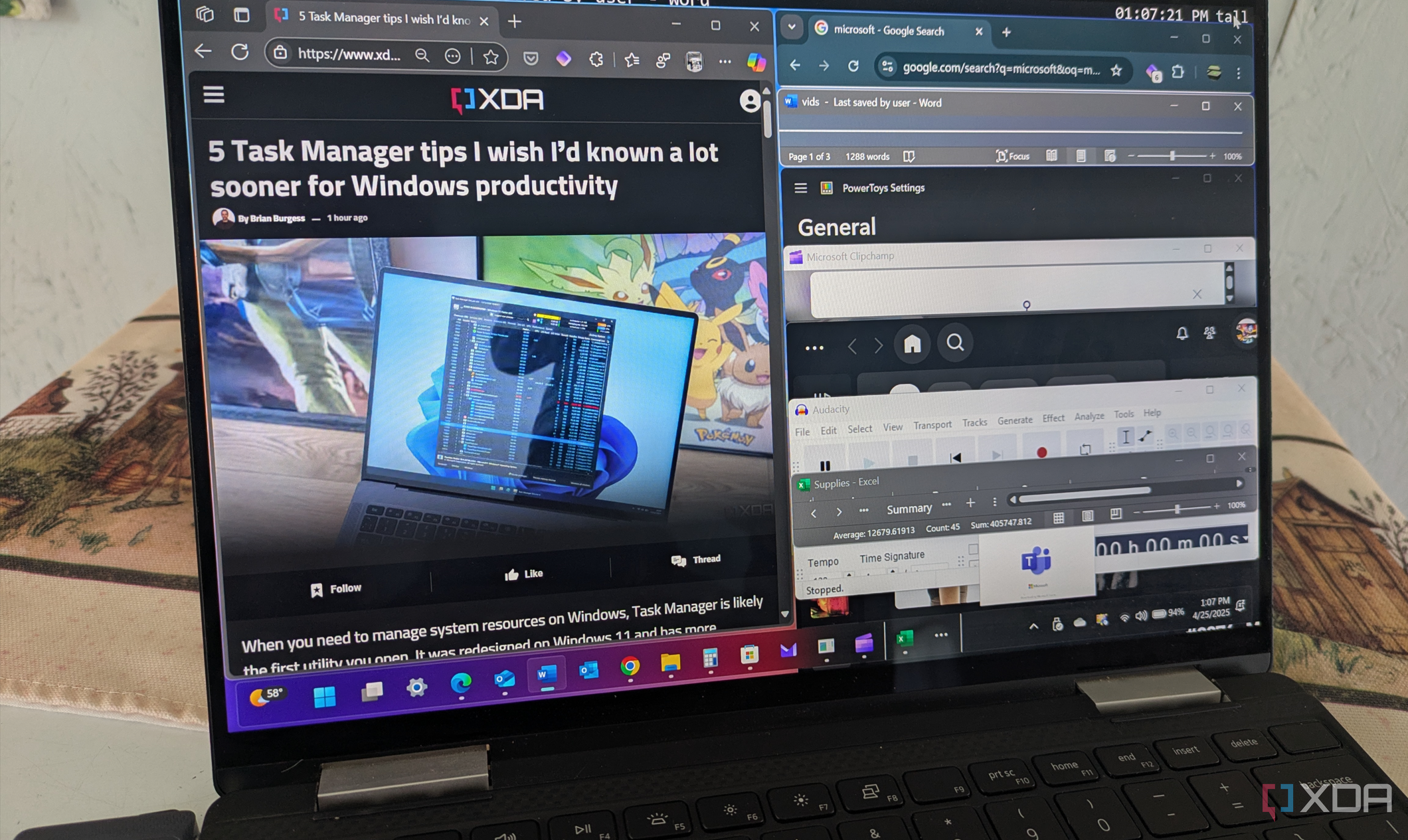
Windows 11 has introduced Snap Layouts, but for advanced users, window tiling managers take productivity to the next level. These tools utilize your screen dimensions to arrange open windows without overlap, allowing for efficient multitasking. Here are some top options:
- FancyZones: Part of PowerToys, it lets you design custom layouts for your applications.
- FancyWM: Available in the Microsoft Store, it provides a user-friendly interface for window management.
- GlazeWM: A simple tiling window manager that enhances productivity.
- Workspacer: A highly customizable tiling manager that supports multiple configurations.
By using these tools, you can efficiently manage your workspace, allowing you to code, browse, watch videos, and manage files simultaneously.
3. XYplorer: Advanced File Management
File management is a crucial aspect of productivity, and while Windows 11 includes tabs in File Explorer, it may not meet every user's needs. Enter XYplorer, a dual-pane file manager that takes file management to the next level:
- Dual-Pane View: Easily compare files and directories side by side.
- Tabs: Open multiple directories in tabs for quick access.
- Fast File Operations: Move, copy, and compare files with ease.
- Portable Version: No installation required; you can run it from a USB stick.
XYplorer integrates well with Windows, allowing you to run it alongside File Explorer without replacing it, making it an excellent choice for enhanced file management.
4. UniGetUI: Simplifying App Management
In the world of software, managing applications can be tedious and time-consuming. UniGetUI offers a solution by providing a unified interface for installing and updating applications:
- Easy Installation: Search for applications across multiple repositories like Chocolatey and Winget.
- Automatic Updates: Automatically discovers updates for all your applications, saving you time.
- User-Friendly Interface: No need for CLI commands; you can manage apps through a graphical interface.
- Beginner-Friendly: Ideal for users new to command line tools.
This powerful tool allows you to streamline your app management process, making it easier to keep your software up to date.
5. Everything: Lightning Fast Search
Time is precious, and every moment spent searching for files can add up quickly. The Everything app by VoidTools revolutionizes file searching on your Windows system:
- Speed: Provides instant search results, far surpassing Windows Search.
- Resource-Efficient: Lightweight and does not consume significant system resources.
- Comprehensive: Indexes all files, including hidden ones, for thorough searches.
- Portability: Can be run from a USB stick, allowing for flexibility.
By incorporating Everything into your workflow, you can drastically reduce the time spent searching for files and folders, making your work more efficient.
6. Wintoys: Streamlined System Customization
Customizing your Windows experience can often feel cumbersome, but Wintoys simplifies this process significantly:
- Single Interface: Make 90% of your Windows changes without navigating through various menus.
- User-Friendly: Designed for ease of use, making it accessible to all users.
- Time-Saving: Quickly adjust settings and personalize your system to fit your needs.
- Free to Use: Offers a comprehensive suite of customization options at no cost.
If you want to optimize your Windows settings without the hassle, Wintoys is a fantastic tool to have in your arsenal.
Conclusion
While Windows 11 has made great improvements, mastering these additional tools can transform your workflow and enhance your productivity. From window management to efficient file handling, each tool discussed provides a unique solution tailored to improve your overall experience. By incorporating these alternatives into your daily routine, you can maximize your efficiency and enjoy a more organized and streamlined digital workspace.
As you explore these tools, consider trying them one at a time to see which fits your workflow best. What are some of your favorite alternatives to enhance your productivity? The right combination could revolutionize the way you work.
FAQs
What are PowerToys, and how do they enhance Windows 11?
PowerToys is a suite of utilities designed to improve Windows functionality. It includes tools like PowerToys Run for quick access to applications, FancyZones for window management, and more, all aimed at enhancing productivity.
How do window tiling tools improve multitasking?
Window tiling tools allow users to arrange multiple open windows on their screens without overlap. This feature enables better organization and efficient multitasking, making it easier to work on various tasks simultaneously.
What makes XYplorer a better file manager than Windows File Explorer?
XYplorer offers a dual-pane view, tabbed browsing, and faster file operations, providing advanced features that enhance file management compared to Windows File Explorer.
Can I use UniGetUI without any coding experience?
Yes, UniGetUI is designed to be user-friendly and does not require knowledge of coding or command line interfaces, making it accessible for all users.
How does Everything differ from Windows Search?
Everything is significantly faster than Windows Search, providing instant results and indexing all files, including hidden ones. It is lightweight and does not consume many resources, making it an ideal search tool.
Maximize your productivity with these tools, and transform your Windows 11 experience into a seamless workflow! #Windows11 #ProductivityTools #TechSavvy